
July 1, 2026
Building dashboards in Excel is a great skill to learn. A good dashboard turns messy numbers into a clean screen. It helps you answer business questions fast.
Here is how to build one:
Many people skip the first steps. They go straight to making charts. That is a mistake.
A good dashboard is easy to read. It does not make you scroll through hundreds of rows. It gives you answers in seconds.
In 2026, Excel is still the best tool for this. You do not need to know how to code. You just need a good plan.
I am Jose Escalera. I am the CEO of The Idea Farm by VM Digital. I help business leaders make smart choices using data. This guide will show you how to do it.
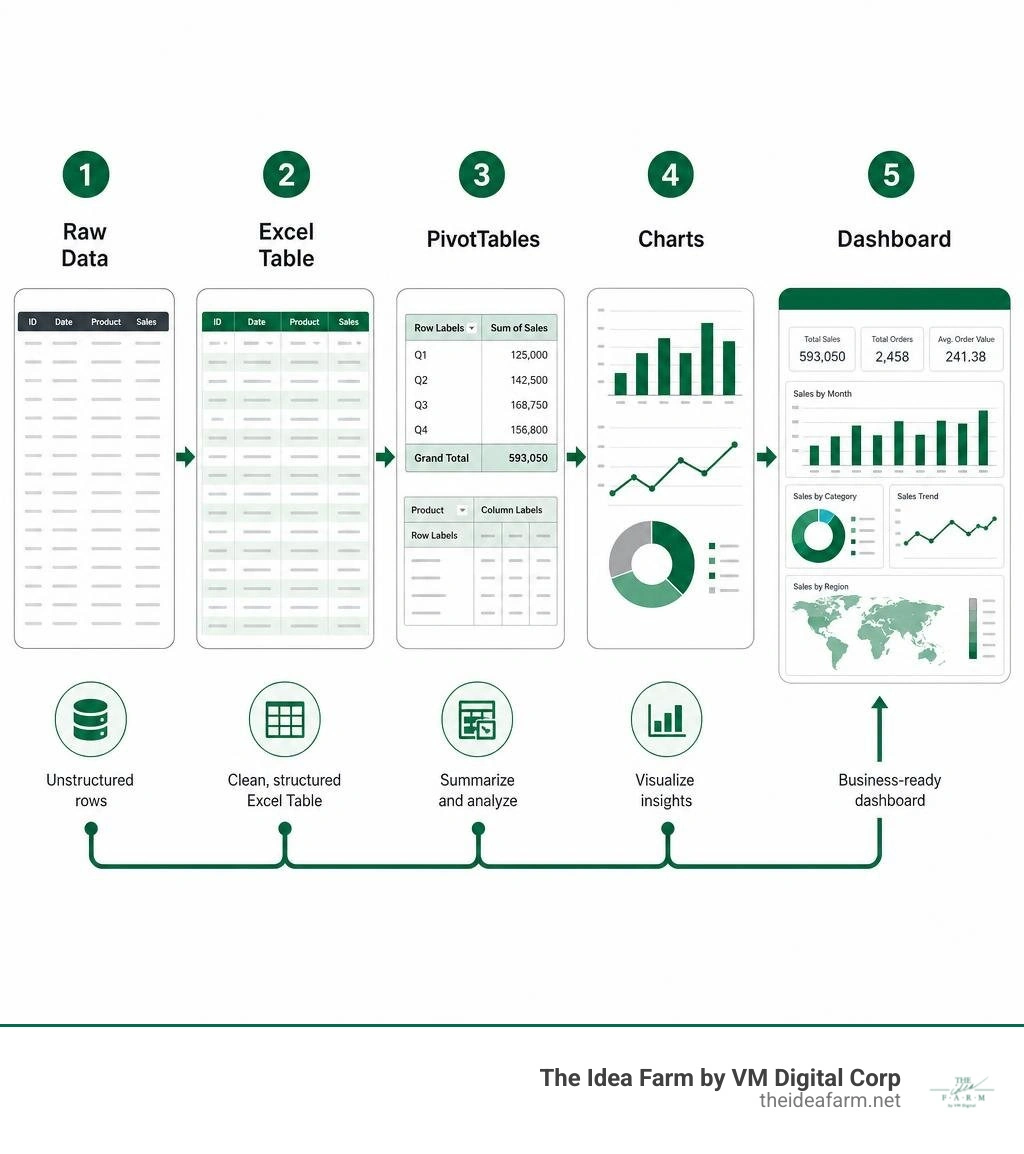
Simple guide to building dashboards in excel terms:
If you want a dashboard that does not break, you need a plan. Do not mix everything together. Do not put raw data, formulas, and charts on one sheet. That makes the file hard to read and easy to break.
To build a good dashboard, we use three sheets. Each sheet has its own job. This is the secret to Developing Dashboards in Excel that last.
The three-sheet system splits your workbook into three parts:
Sometimes, we add a fourth sheet called Settings. This sheet holds goals or tax rates. Keeping these sheets separate makes your work look professional. For more details, check out our guide on Building a Dashboard.
Why separate your sheets? Here are four good reasons:
You cannot build a strong house on a weak foundation. The same is true for dashboards. If your data is messy, your dashboard will be wrong. Cleaning your data is the most important step. We explain this in our Data Analytics Dashboard Guide 2026.
Do not use plain cells for your data. Instead, turn your data into an Excel Table.
To do this, select your data and press Ctrl+T. Check the box that says My table has headers. Then, go to the Table Design tab. Give your table a clear name, like tblSales.
Excel Tables help you in two big ways:
Learn more about setting up your metrics with our guide on how to Build KPI Dashboard Excel.
Sometimes raw files are messy. They might have empty rows or wrong dates. Do not clean this data by hand every month. Use Power Query instead.
Power Query is a tool inside Excel. It remembers how you clean your data. You can remove empty rows and fix dates with a few clicks. Next month, you just click Refresh. Power Query will do all the work for you.
As noted in the guide on Building an Interactive Dashboard in Excel (2026): From Raw Rows to a Decision-Ready View – TheLinuxCode, using Power Query is the best way to make a reliable tool.
Once your data is clean, you need to group it. You cannot show thousands of rows on one screen. You need to group them by month, region, or product. PivotTables do this work for you. They are the engine of your dashboard. To learn more, read about our Best Practices Building Reports and Dashboards.
Follow these simple rules to build a good engine room:
For more tips, read the tutorial on Dashboards in Excel: Build Professional KPI Dashboards.
Now you can turn your tables into charts. Click your PivotTable, go to the Insert tab, and choose PivotChart.
Here are four simple chart types to use:
Always clean up your charts. Remove extra lines and borders. This makes your dashboard look neat.
A still chart is just a picture. An interactive dashboard is a real tool. Buttons let users filter the data to find their own answers. We explain this in our post on Custom Analytics Dashboards.
Slicers are buttons that let users filter your charts with one click. Users can just click a button for a region or product.
To add a slicer, click your PivotTable. Go to the PivotTable Analyze tab and click Insert Slicer. Choose the fields you want to filter, like Region.
At first, a slicer only filters one chart. To connect it to all your charts:
Now, when you click a button, every chart updates at the same time. This trick is explained in the Create and share a Dashboard with Excel and Microsoft Groups | Microsoft Support guide.
If your data has dates, use a Timeline. A Timeline is a slider made for dates.
To add one, click your PivotTable. Go to the PivotTable Analyze tab and click Insert Timeline. You can filter your dashboard by year or month by dragging the slider. Connect your Timeline to all your PivotTables using Report Connections.
A great dashboard must look clean. If it is messy, people will not trust your numbers. You do not need to be an artist. You just need to follow a few simple rules. To learn more, read our guide on how to Build Custom Dashboards.
KPI cards are small boxes at the top of your dashboard. They show your most important numbers. They should be the first thing people see.
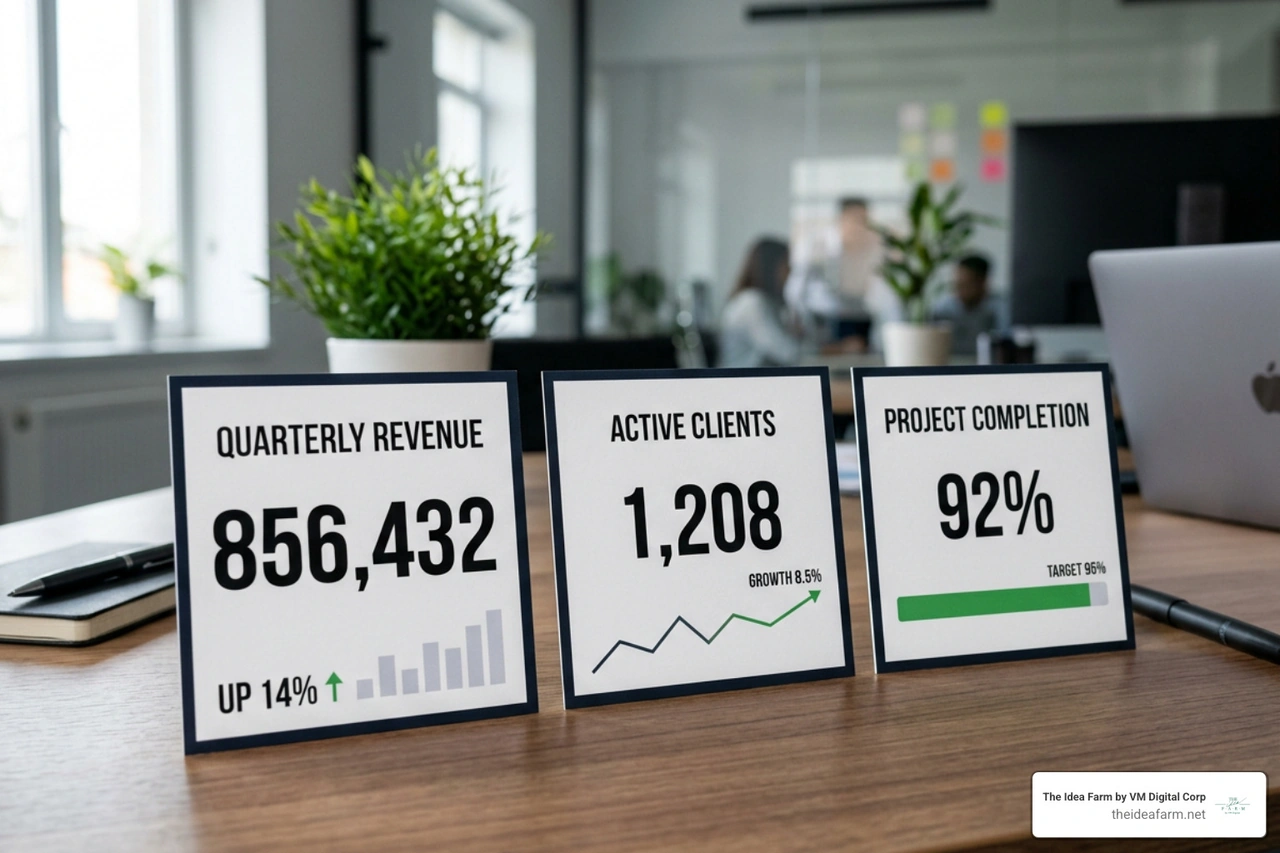
To build a clean KPI card:
=Calculations!A4 (this links to your number). Press Enter.To keep things neat, hold the Alt key while moving your charts. This snaps them to the grid lines so they align perfectly.
Do not use too many colors. That makes the screen hard to read. Instead, use the three-color rule:
Turn off gridlines on your Dashboard sheet. Go to the View tab and uncheck Gridlines. This makes your sheet look like a real app.
For cleaner dashboard charts, adjust these default Excel elements:
Once your dashboard is done, you must keep it safe. If other people can edit your formulas, they might break the file. We cover this in our Growth Dashboard Complete Guide.
Lock your sheets so users do not break them:
This keeps your formulas safe while letting users click the buttons.
Your dashboard must stay up to date. Write down how to refresh the data so anyone can do it.
Add a small text block on your Settings tab. Write down:
You can also use tools like Power Automate to update the data for you. These tools can pull data from your email and refresh your charts automatically.
Even experts make mistakes when building dashboards in Excel. Knowing what to avoid will save you time. To see more mistakes, check out our Grow Dashboard Complete Guide.
The biggest mistake is trying to show too much. If your dashboard has too many charts, it will confuse people.
Use the five-second rule. A user should understand the main trend in five seconds. Limit your dashboard to 5 or 7 key numbers. If you need to show more, make a second tab.
If you use fixed cell ranges like Sheet1!$A$1:$B$50, your dashboard will break when you add new data. You will have to update every chart by hand every month.
Always use Excel Tables or Power Query. This makes your data ranges grow on their own. To learn more, check out the guide on How to Create a Dashboard in Excel: A Step-by-Step Tutorial | DataCamp.
Right-click the slicer and choose Report Connections. Check the boxes for all the PivotTables that power your charts. This works if your PivotTables use the same data table.
You should move to a tool like Power BI when:
To keep your workbook fast:
OFFSET or INDIRECT.Building dashboards in Excel is not just about making pretty charts. It is about building a clean system that turns numbers into business growth. By using three sheets, Excel Tables, and clean designs, you help your team make smart choices.
At The Idea Farm, we build data systems to help your business grow. We help you understand your numbers so you can succeed.
Ready to turn your messy spreadsheets into clear insights? Get started with the Growth Dashboard today. Let us build the perfect data system for you.